Installation
SenHub Agent is a monitoring collector that runs on your infrastructure and collects metrics from various sources (servers, applications, network devices). It installs as a system service and runs in the background.
System Requirements
| Platform | Versions | Architecture |
|---|---|---|
| Windows | Server 2016+, Windows 10+ | x64 |
| Linux | RHEL 7+, Ubuntu 18.04+, Debian 10+ | x64, ARM64 |
| Container | any host running a container runtime | x64, ARM64 |
A container is a supported deployment and has its own page: see Running the agent in a container. The rest of this page installs the agent as a system service.
Resource requirements: 1 CPU core, 512 MB RAM, 500 MB disk space.
Network requirements: outbound HTTPS from the agent host to whichever sink you configure (Prometheus scraper, OTLP collector, vmagent, Grafana Cloud OTLP). For an agent that only exposes data through its local HTTPS endpoint, no outbound connection is required at all.
Obtaining the Agent
Contact SenHub support (support@senhub.io) or download from the GitHub releases page. You will receive:
- On Windows, the signed MSI installer (
senhub-agent-<version>-amd64.msi) or the agent ZIP - On Linux, the agent ZIP for your architecture (see naming convention below)
- A license token (required for premium probes: Citrix, NetScaler, Redfish, etc.)
Direct download URLs
For a Dockerfile, an air-gapped copy or a configuration-management recipe, you need the URL rather than a browser. Two sources serve the same artifacts:
# GitHub — public, and the one to prefer for a container build
https://github.com/senhub-io/senhub-agent/releases/download/0.6.0/senhub-agent-linux-amd64.zip

# SenHub release server
https://eu-west-1.intake.senhub.io/download/0.6.0/senhub-agent-linux-amd64.zip
Release tags carry no v prefix
The tag is 0.6.0, not v0.6.0. A URL built with the v returns
404, which reads like a missing file rather than a wrong name — this
is the single most common reason a direct download fails.
Substitute the version you want. To discover what is published:
That endpoint lists every stable version, newest first; latest is an
alias for the newest. Beta versions are at
/releases/beta/releases.json.
/releases lists, /download serves
The two are different paths on purpose: /releases/... is the
index, /download/<version>/... is where the files are. Do not put
either of them into auto_update.url — that setting is the base
the agent appends to, so a value carrying one of these paths makes
every derived URL double it. agent config check reports this and
tells you what to write instead.
Verifying a download
Every artifact is published with a minisign signature next to it. Verify before you run it, especially in an automated build:
VERSION=0.6.0
BASE=https://github.com/senhub-io/senhub-agent/releases/download/$VERSION
curl -fsSLO "$BASE/senhub-agent-linux-amd64.zip"
curl -fsSLO "$BASE/senhub-agent-linux-amd64.zip.minisig"

minisign -Vm senhub-agent-linux-amd64.zip \
  -P RWRlfkyeLpjI0MjTSfuvT/bDNHHaVJhRirQN8Z8LTAM+n4LKVbpjrlRh
That public key is the one the agent itself embeds to verify its own
auto-updates. There is no SHA256SUMS file: minisign is the
verification path. Each release also publishes a manifest with the
checksum, size and signature address of every file, and a stable address
for the newest release of each channel; see
Downloading and verifying releases.
Release Artifact Naming
Release artifacts are ZIP archives named with dashes between OS and architecture:
| Platform | ZIP filename | Binary inside ZIP |
|---|---|---|
| Windows x86_64 | senhub-agent-windows-amd64.zip |
senhub-agent.exe |
| Linux x86_64 | senhub-agent-linux-amd64.zip |
senhub-agent |
| Linux ARM64 | senhub-agent-linux-arm64.zip |
senhub-agent |
Each ZIP contains a binary already named senhub-agent (or senhub-agent.exe on Windows). No renaming is needed after extraction.
These three are the platforms the release publishes. The agent also builds and runs on macOS, but no macOS archive is published: it is a development target, and a build from source is the way to get one.
On Windows, the release also ships a Windows Installer package, senhub-agent-<version>-amd64.msi (amd64 only), which is the recommended way to install on servers and managed fleets.
Windows Installation
Two paths are supported on Windows:
- The MSI installer — a guided wizard for interactive installs, and a silent, property-driven install for GPO / SCCM / Intune fleets. This is the recommended path.
- The ZIP +
installcommand — extract the binary and register the service by hand, useful for quick local setups.
MSI installer (recommended)
The MSI (built with WiX 5.0.2) installs senhub-agent.exe into %ProgramFiles%\SenHub Agent\, registers and starts the senhub-agent Windows service (display name SenHub Agent, running as LocalSystem, with restart-on-failure recovery), and provisions the configuration on first install.
On first install the MSI runs senhub-agent config init, which writes the default multi-file configuration under %ProgramData%\SenHub\ (agent.yaml + probes.d\ + strategies.d\) with no interactive step, and applies any license key, tags or OTLP endpoint you provide. Provisioning is idempotent: an upgrade never overwrites an existing configuration. A genuine uninstall removes %ProgramData%\SenHub\ in full (see Uninstallation), so a fresh install starts from the installer's inputs.
Signed installer
The MSI, the bundled senhub-agent.exe and the installer's PowerShell payload are code-signed with an HSM-backed Certum code-signing certificate. Windows shows the SENSOR FACTORY SAS publisher, and SmartScreen does not raise an unknown-publisher warning. You can confirm the signature with Get-AuthenticodeSignature .\senhub-agent-<version>-amd64.msi | Format-List — status Valid with the SENSOR FACTORY SAS publisher.
Interactive install
Double-click senhub-agent-<version>-amd64.msi and follow the guided wizard (Welcome → licence agreement → install directory → agent options → ready → progress → finish). With nothing provided, the agent installs in the Free-tier default (local scrape endpoints only, no push).
Silent / unattended install
Public MSI properties drive an unattended install from the msiexec command line (or an MST for GPO). All are optional; with none set the agent installs in the Free-tier default (local endpoints only, no push).
| Property | Purpose |
|---|---|
LICENSE_FILE |
Path to the licence file (.jwt), what the wizard's Browse button fills in (local or UNC path) |
LICENSE_KEY |
The licence token itself, for scripted installs |
TAGS |
Comma-separated k=v list applied as host global_tags (e.g. site=paris,env=prod) |
OTLP_ENDPOINT |
Optional collector host:port — writes an OTLP push strategy (strategies.d\10-otlp.yaml) |
ZABBIX_SERVER |
Optional Zabbix server or proxy host:port — writes the Zabbix output (strategies.d\20-zabbix.yaml); the host then registers in Zabbix at its first contact |
ZABBIX_HOST_METADATA |
Host metadata the Zabbix autoregistration action matches (default senhub-agent) |
HTTP_PORT |
Port of the local HTTP endpoints, PRTG / Web UI / Nagios / Prometheus (default 8080). A port already in use fails the install. |
DESKTOP_SHORTCUT |
1 (default) creates a "SenHub Agent Console" desktop shortcut; 0 skips it |
INSTALLFOLDER |
Override the install directory (default %ProgramFiles%\SenHub Agent\) |
ADOPT |
ADOPT=1 takes over an agent installed outside the MSI (see below) |
Properties are consumed only on first install; they do not overwrite an existing agent.yaml.
The guided install (double-click) asks for the licence file, the port, the desktop shortcut and whether to open the web console at the end, all on one page. The console address carries the administration key, generated on the machine and kept sealed, so the wizard does not print it: the desktop shortcut and senhub-agent console open it, and senhub-agent console --print (as administrator) prints it. The administration key is not the agent key given to PRTG, Nagios or a Prometheus scrape, which only reads metrics.
msiexec /i senhub-agent-<version>-amd64.msi /qn ^
  LICENSE_KEY=eyJhbGciOi... ^
  TAGS=site=paris,env=prod ^
  OTLP_ENDPOINT=collector.company.com:4317 ^
  /l* %TEMP%\senhub-agent-install.log
Free tier, no provisioning:
The license key is a secret
A verbose install log (/l*v) records property values and custom-action command lines, so a LICENSE_KEY passed on the msiexec line can appear in that log. When provisioning a license silently, use a non-verbose log level (/l*) or omit logging entirely for the install that carries LICENSE_KEY; if you must capture a verbose log for troubleshooting, treat it as sensitive and delete it once the install is confirmed. The token equally lands in the deployment tool's job output — scrub it the same way.
For GPO, SCCM and Intune deployment (including the MST transform GPO needs to pass properties), see Windows: Intune, GPO and SCCM. Other tools (Ansible, cloud-init, Docker Compose, Helm, Podman) are in Deploying at scale.
Adopting an existing agent
If the machine already runs an agent installed outside the MSI (a senhub-agent install, ZIP or auto-update deploy), the installer detects the foreign service and, by default, stops with a clear message rather than colliding on service creation. Pass ADOPT=1 to take it over:
ADOPT=1 stops and deletes the existing service, then installs the MSI-managed one. Configuration under %ProgramData%\SenHub\ is preserved, so migrating a fleet from a script or auto-update install to MSI management is a single ADOPT=1 install. An MSI installed by this MSI upgrades cleanly on its own — ADOPT is only for foreign installs.
Auto-update on MSI installs
An MSI-managed install does not self-replace its binary. Auto-update stays automatic but applies a new signed MSI instead: when an update is available the agent downloads senhub-agent-<version>-amd64.msi, verifies its signature, and runs msiexec /i /qn (a clean MajorUpgrade that preserves %ProgramData%\SenHub\ and restarts the service). The agent detects the MSI registry marker and switches to this path automatically; a non-MSI (ZIP / script) install keeps the binary self-replace flow. To manage updates yourself instead, disable auto_update and push new MSIs through your management tool (Intune / SCCM / WSUS).
ZIP install
For a quick local setup you can install from the ZIP and register the service by hand.
1. Prepare the binary
Download senhub-agent-windows-amd64.zip, then extract it to your installation directory:
The ZIP contains senhub-agent.exe, already correctly named.
2. Install the service
Open a PowerShell terminal as Administrator and run:
This registers SenHub Agent as a Windows Service with automatic restart on failure. A UUID agent key is generated automatically and saved to the configuration file.
To install with HTTPS enabled on the local API:
3. Start the service
4. Verify the installation
You can also check the health endpoint:
Expected response:
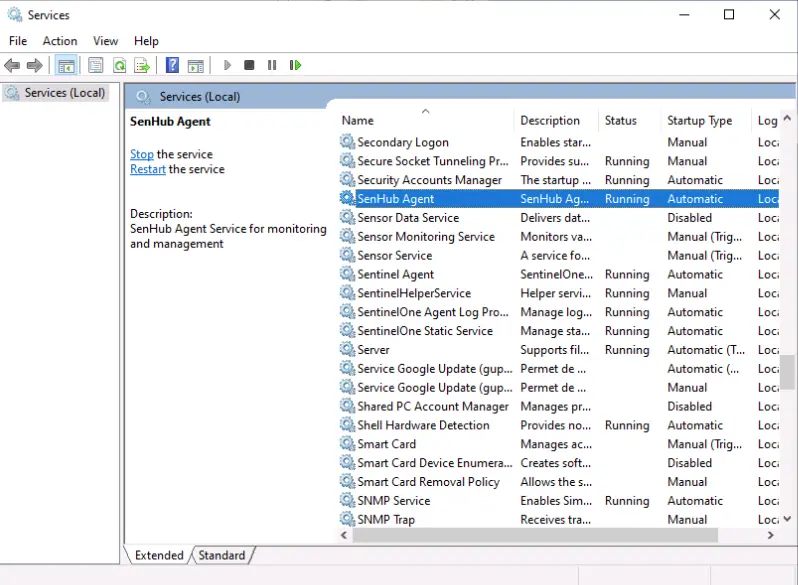
Log file location
Windows logs are stored at:
Typically: C:\ProgramData\SenHub\logs\senhubagent.log
Log rotation: 10 MB max per file, 5 backup files, 30-day retention, compressed.
Linux Installation
1. Prepare the binary
Download the ZIP for your architecture (senhub-agent-linux-amd64.zip or senhub-agent-linux-arm64.zip), then extract it:
sudo mkdir -p /opt/senhub/bin
sudo unzip senhub-agent-linux-amd64.zip -d /opt/senhub/bin/
sudo chmod +x /opt/senhub/bin/senhub-agent
The ZIP contains senhub-agent, already correctly named.
2. Install the service
This creates and registers a hardened systemd service (senhub-agent.service) that runs the agent as a dedicated unprivileged system user (senhub, created during install if missing) with all Linux capabilities dropped — the same unit the .deb/.rpm packages ship. A UUID agent key is generated automatically and saved to the configuration file, and the configuration and log directories are handed to the senhub user.
install copies the binary to /usr/local/bin/senhub-agent and the service runs that copy; the one you extracted is no longer used, and you may delete /opt/senhub/bin once the install has succeeded. Every later command that touches the service, the secret store or the binary runs as root and calls the installed binary by its full path, sudo /usr/local/bin/senhub-agent .... On RHEL, AlmaLinux and Rocky Linux, sudo leaves /usr/local/bin out of its search path, so sudo senhub-agent status answers "command not found" there while sudo /usr/local/bin/senhub-agent status works.
To send to Zabbix, give the agent its server once the service is installed; the running agent picks the output up and the host registers in Zabbix at its first contact (see Zabbix):
If a probe needs a privilege the default unit does not grant (for example snmp_trap on UDP/162 or ICMP raw sockets), grant the single capability with a unit drop-in — see Running the agent least-privilege. To keep the previous behavior of running the service as root:
Upgrading from an earlier version
install never touches an existing senhub-agent.service unit; it fails with "Init already exists", and existing installs keep running as before. To move an existing install to the hardened unit, refresh the unit in place:
refresh-unit compares the installed unit with the one embedded in the binary, prints the difference, asks for confirmation (--yes skips it), then rewrites /etc/systemd/system/senhub-agent.service and reloads systemd. It keeps the User= / Group= the unit already runs as and its ExecStart line while that binary still exists, and creates the service user if it is missing. Restart the service afterwards. Before moving a root install to the senhub user, review any probe that relied on root (privileged ports, raw sockets) against the per-probe privilege map in the least-privilege guide.
Do not use uninstall followed by install for this: uninstall deletes the configuration directory, including the sealed secret store and the agent key. Keep that sequence for a host being re-provisioned from scratch.
To install with HTTPS enabled and a custom certificate hostname:
sudo /opt/senhub/bin/senhub-agent install \
  --enable-https \
  --https-hosts "agent.company.com,192.168.1.100" \
  --https-port 8443
3. Start the service
4. Verify the installation
Or check the health endpoint:
Log file location
Linux logs are stored at:
If this directory is not writable, logs fall back to the binary directory.
Log rotation: 10 MB max per file, 5 backup files, 30-day retention, compressed.
Install from packages
The agent is also available as a .deb (Debian, Ubuntu) and an .rpm (RHEL, Rocky Linux, openSUSE) for amd64 and arm64, in two editions. Download the file for your edition, distribution and architecture, then install it with your package manager:
| Edition | Package name | Choose it when |
|---|---|---|
| Open source | senhub-agent-oss |
You use the free probes (OS and host, logs, network checks, applications, databases and brokers). Licensed under Apache-2.0. |
| Full | senhub-agent |
You use the paid probes (Citrix, NetScaler, Veeam, Redfish and the other deep vendor probes), with a license token. |
Both editions install the same files and the same service, so only one can be installed at a time.
# Debian, Ubuntu
sudo apt install ./senhub-agent-oss_<version>-1_amd64.deb

# RHEL, Rocky Linux, AlmaLinux
sudo dnf install ./senhub-agent-oss-<version>-1.x86_64.rpm

# openSUSE, SLES
sudo zypper install --allow-unsigned-rpm ./senhub-agent-oss-<version>-1.x86_64.rpm
For the full edition, use the senhub-agent file in the same commands. A beta carries its number after a tilde, for example senhub-agent-oss_0.6.2~beta.1-1_amd64.deb: the package manager sorts 0.6.2~beta.1 and 0.6.2~beta.2 before the final 0.6.2, so the release replaces its betas as an ordinary upgrade.
Switching edition
Install the other edition in place of the installed one. The service restarts on the new package, and your configuration, agent key, secrets and data are kept. Switching in either direction works the same way. On Debian and Ubuntu one install command does it; on the rpm distributions the two editions conflict, so the switch is an explicit swap.
# from the open source edition to the full edition
sudo apt install ./senhub-agent_<version>-1_amd64.deb                          # Debian, Ubuntu
sudo dnf swap senhub-agent-oss ./senhub-agent-<version>-1.x86_64.rpm            # RHEL, Rocky Linux, AlmaLinux
sudo zypper install --force-resolution ./senhub-agent-<version>-1.x86_64.rpm    # openSUSE, SLES
From the package repositories, use the package name instead of the file: sudo dnf swap senhub-agent-oss senhub-agent or sudo zypper install --force-resolution senhub-agent. Going back uses the same commands with the names exchanged.
The package creates the senhub service user, installs the binary at /usr/bin/senhub-agent and the hardened senhub-agent.service unit, writes the default configuration to /etc/senhub-agent/ with a key of its own for this host, and starts the service. It does not run senhub-agent install; do not run both.
- Upgrade: install the newer file the same way. Your edits to the configuration are kept and the service restarts on the new binary.
- Version: the package manager owns it.
auto_updateisfalsein the packaged configuration, so the agent never replaces itself; leave it that way. -
Removal:
sudo apt remove senhub-agent-oss(ordnf remove,zypper remove; use the package name of your edition) stops and disables the service and keeps/etc/senhub-agent,/var/lib/senhub-agentand the logs.sudo apt purge senhub-agent-ossalso deletes them, and thesenhubuser. -
Host already installed with
senhub-agent install: installing the package takes over. It stops the service, removes the unit in/etc/systemd/systemand the binary in/usr/local/bin(a copy is kept as/var/lib/senhub-agent/senhub-agent.pre-package), and starts the packaged service. Your configuration, agent key, secrets and data are not touched. The reverse (going back from a package toinstall) is not supported: remove the package first, then install from the ZIP.
Install from the package repositories
Signed APT and YUM/DNF/Zypper repositories are served at https://packages.senhub.io. They go live with the first published beta: until then, install from the downloaded file as above. Two channels exist, stable (final releases) and beta (pre-releases, X.Y.Z~beta.N); pick one per machine, and replace beta by stable in the commands below to follow final releases. The same page, https://packages.senhub.io, carries these commands for both channels. The package names are the ones of the table above: senhub-agent-oss (open source edition) and senhub-agent (full edition).
The signing key is served at https://packages.senhub.io/gpg.key; its fingerprint is printed on the repository page. The repository metadata and every package are signed with it, and the clients check both.
Debian, Ubuntu:
sudo install -d -m 0755 /etc/apt/keyrings
curl -fsSL https://packages.senhub.io/gpg.key | sudo gpg --dearmor --yes -o /etc/apt/keyrings/senhub.gpg
echo "deb [arch=$(dpkg --print-architecture) signed-by=/etc/apt/keyrings/senhub.gpg] https://packages.senhub.io/apt beta main" | sudo tee /etc/apt/sources.list.d/senhub.list
sudo apt update
sudo apt install senhub-agent-oss
RHEL, Rocky Linux, AlmaLinux, Fedora:
sudo curl -fsSLo /etc/yum.repos.d/senhub.repo https://packages.senhub.io/rpm/beta/senhub.repo
sudo dnf install senhub-agent-oss
openSUSE, SLES:
sudo rpm --import https://packages.senhub.io/gpg.key
sudo curl -fsSLo /etc/zypp/repos.d/senhub.repo https://packages.senhub.io/rpm/beta/senhub-zypper.repo
sudo zypper refresh
sudo zypper install senhub-agent-oss
For the full edition, install senhub-agent instead. Updates then arrive with the system's own updates (apt upgrade, dnf upgrade, zypper update).
Installation Options
The install command accepts the following options:
Configuration
| Flag | Default | Description |
|---|---|---|
--config-path PATH |
OS canonical path | Path to the configuration file |
--user USER |
senhub |
System user the installed Linux service runs as. Use root to keep the legacy root unit. Ignored on Windows and macOS. |
HTTPS / TLS
| Flag | Default | Description |
|---|---|---|
--http-port PORT |
8080 |
HTTP listening port (PRTG / Web UI / Nagios / Prometheus endpoints) |
--enable-https |
disabled | Enable HTTPS on the agent API |
--https-port PORT |
8443 |
HTTPS listening port |
--https-hosts HOSTS |
localhost,127.0.0.1 |
Hostnames for the auto-generated certificate (comma-separated) |
--cert-file PATH |
auto-generated | Path to a custom TLS certificate file |
--key-file PATH |
auto-generated | Path to a custom TLS private key file |
--min-tls-version VER |
1.2 |
Minimum TLS version (1.2 or 1.3) |
Logging
| Flag | Description |
|---|---|
--verbose or -v |
Enable verbose logging for all modules |
--filter MODULES |
Filter debug logs by module prefix (implies verbose). Example: --filter probe.veeam |
What Happens During Installation
When you run senhub-agent install, the agent:
- Checks for administrator/root privileges (required on Windows and Linux)
- On Linux: creates the dedicated
senhubsystem user and group if they do not exist (skipped with--user root) - Registers the system service (
SenHub Agenton Windows, the hardenedsenhub-agent.servicerunning assenhubon Linux) - Configures automatic restart on failure
- Generates the multi-file configuration layout at the OS canonical path: a globals-only
agent.yamlplus siblingprobes.d/andstrategies.d/directories prefilled with sane defaults (host probes + HTTP strategy). A fresh UUID is generated for the agent key. - If
--enable-httpsis specified: creates acerts/directory with a self-signed certificate and private key (valid for 365 days), and configures the HTTP strategy fragment to use them. - On Linux: hands the configuration, log and certificate files to the service user so the unprivileged daemon can read them.
The Windows MSI installs the same service and configuration layout, driving the provisioning step through config init instead of an interactive install (see MSI installer above).
Files Created
| File | Permissions | Description |
|---|---|---|
agent.yaml |
0600 (owner only) |
Globals only (agent identity, auto-update, cache). At the OS canonical path. |
probes.d/00-host.yaml |
0600 (owner only) |
Default host probes: cpu, memory, network, logicaldisk. |
strategies.d/00-http.yaml |
0600 (owner only) |
Default HTTP strategy (PRTG / Web / Nagios on 127.0.0.1:8080). |
certs/agent-cert.pem |
0600 (owner only) |
TLS certificate (if HTTPS enabled). |
certs/agent-key.pem |
0600 (owner only) |
TLS private key (if HTTPS enabled). |
Add additional probes by creating new fragment files under probes.d/ (e.g. 10-mysql.yaml — files load alphabetically). Add another strategy by creating a new file under strategies.d/ with exactly one top-level key (the strategy name). Disable any fragment by renaming it to *.disabled — no deletion required. The agent watches both directories with fsnotify, so add/modify/remove reloads automatically without a restart.
Migrating an existing monolithic install
If you upgraded from a pre-0.2.x agent that used the single-file agent-config.yaml layout, the agent keeps loading it transparently — no immediate action required. To move to the multi-file layout cleanly:
The command takes a timestamped backup of the original, splits globals into agent.yaml, probes into probes.d/00-host.yaml, and strategies into per-strategy files under strategies.d/. It then verifies the post-split data matches the original (and restores the backup on any mismatch). Comments from the monolithic file are NOT carried into the fragments — they live in the backup for reference. The command is idempotent: running it on an already-multi-file install reports "nothing to do" and exits 0.
Service Management Commands
The agent binary provides built-in service management. On Linux, run these as root with the full path of the installed binary (sudo /usr/local/bin/senhub-agent ...); on Windows, from an elevated prompt.
| Command | Description |
|---|---|
senhub-agent install |
Install the system service |
senhub-agent uninstall |
Remove the system service and delete the configuration directory, including the sealed secret store and the agent key (irreversible) |
senhub-agent refresh-unit |
Linux: bring the installed systemd unit up to date with this binary (--yes skips the confirmation) |
senhub-agent start |
Start the service |
senhub-agent stop |
Stop the service |
senhub-agent restart |
Restart the service |
senhub-agent status |
Show service status, health, and resource usage |
senhub-agent status --otlp |
Same as above, plus a block showing the OTLP push pipeline self-metrics |
senhub-agent version |
Show agent version and build information |
senhub-agent run |
Run interactively in console mode (for debugging) |
senhub-agent config check |
Validate configuration file |
senhub-agent update |
Check for updates |
senhub-agent update --list |
List available versions |
senhub-agent update VERSION |
Install a specific version |
Console Mode
The run command starts the agent interactively in the foreground (not as a service). This is useful for debugging:
sudo /usr/local/bin/senhub-agent run
sudo /usr/local/bin/senhub-agent run --verbose
sudo /usr/local/bin/senhub-agent run --filter probe.veeam
All logs are printed to the console. Press Ctrl+C to stop.
Use --filter to limit debug output to specific modules (see CLI Reference).
Updating the Agent
Check for available updates:
Install a specific version:
On an MSI-managed Windows install, auto-update applies a new signed MSI rather than swapping the binary in place — see the note under MSI installer.
Post-Installation Checklist
After installing and starting the agent, verify the following:
- The service is running:
sudo /usr/local/bin/senhub-agent status(Linux) or.\senhub-agent.exe statusfrom an elevated prompt (Windows) - The health endpoint responds:
curl http://localhost:8080/health - The web console is accessible:
sudo /usr/local/bin/senhub-agent console --printprints its address,http://localhost:8080/web/{admin-key}/dashboard, which carries the administration key - Probes are collecting metrics: check the probes endpoint
curl http://localhost:8080/api/{key}/info/probes, where{key}is the agent key (sudo /usr/local/bin/senhub-agent key show) - The log file exists and is being written to
Next Steps
After installation:
- Configure your monitoring probes (see Configuration)
- Activate your license if you have premium probes (see License section in Configuration)
- Set up HTTPS if required (see HTTP/HTTPS Configuration)
- Configure your monitoring system (PRTG, Nagios) to collect metrics (see Web console)
Uninstallation
Windows (MSI install):
Or use Apps & features / Programs and Features interactively.
Uninstalling removes the whole %ProgramData%\SenHub\ tree — configuration, sealed secret store, license, and the transient logs\ and update\ folders — so removing the product leaves the machine clean, whether you uninstall from Apps & features or with msiexec /x. A later fresh install then starts from the installer's inputs (licence, port) rather than a stale kept configuration.
This is not recoverable. To move a host to a newer version while keeping its licence and configuration, upgrade in place (install the newer MSI over the older one) instead of uninstalling: an in-place major upgrade preserves everything under %ProgramData%\SenHub\.
PURGE_DATA is accepted for backward compatibility but no longer changes anything, since a genuine uninstall already removes the full tree.
Windows (ZIP install):
uninstall does not delete the folder the ZIP was extracted to: the running binary cannot remove itself. Delete it by hand once the service is gone, as above.
Linux:
The uninstall command asks for confirmation (--yes skips it), stops the service, removes the service registration, and deletes the whole configuration directory: agent.yaml, probes.d/, strategies.d/, certs/, the logs and the sealed secret store, which holds the agent key and every credential the agent sealed.
Uninstall is irreversible
Sealed values cannot be recovered after uninstall, and a later install generates a new agent key, so PRTG sensors and Nagios checks that carry the old key, and a licence bound to it, stop matching. Use uninstall only on a host being re-provisioned. To update the systemd unit of an existing install, use refresh-unit instead (see the upgrade note under Linux Installation).