Web console
SenHub Agent ships a web console. It answers the questions an operator asks in the order they ask them: is the agent running, what does it collect, where does the data go, and what URL does the poller need.
Opening the console
The console is served by the http output on the agent's port. Open:
Replace agent-server with the address of the machine running the agent and {admin-key} with the administration key, the admin_key of the http output. senhub-agent console --print, run as root or administrator, prints the full address with that key in it; on Windows the installer creates a Start Menu shortcut that opens the console directly. senhub-agent key show prints the agent key, which only reads metrics and does not open the console. With HTTPS enabled, use https:// and the HTTPS port (8443 by default).
The console requires the web endpoint of the http output and an
administration key. The agent generates that key by itself on the
first start that finds none, so an upgraded installation keeps working
without anyone touching its configuration:
http:
  port: 8080
  bind_address: "127.0.0.1"
  endpoints: ["prtg", "web", "nagios", "prometheus"]
  admin_key: "${secret:http.admin_key}"
The agent mints the key at first start and seals it in the operating
system's secret store under the name http.admin_key; the http
fragment holds only the reference shown above. If you set your own key,
any secret name works. For instance, senhub-agent secret set
http.admin_key, then admin_key: "${secret:http.admin_key}".
The key that reads and the key that changes
The agent key is what you give a monitoring tool to read this agent — PRTG, Nagios, a Prometheus scrape. It travels in the URL, so it ends up in the access log of every machine between the poller and the agent.
The console does not read: it edits probes and outputs, tests them with
live credentials, changes log levels and clears the cache. So it answers
admin_key and nothing else, and the address you open it with carries
that key: http://agent-server:8080/web/{admin-key}/dashboard.
The administration key also reads, so one key is enough to use the console. The reverse is not true: the key in your PRTG sensor opens the metrics and stops there.
The Windows desktop and Start Menu shortcuts keep working across the
change: they name the agent, not the key, and senhub-agent console
resolves the right one. An address you bookmarked by hand does not — it
carries the old key. Take a fresh one from the shortcut or from
senhub-agent console --print.
Without admin_key, the console is not served — its addresses answer
404 rather than asking for a key nobody has. An agent installed to feed
PRTG or Nagios therefore exposes nothing that can change it. Your
pollers are unaffected either way. If the key is added while the agent runs, the agent serves the console from the next configuration reload.
Rotating or removing the key. After a configuration reload, the new key is served at once, with no restart: the old key now answers 401. If you remove admin_key and reload, the administration routes are no longer served and answer 404, exactly as on an agent that never had a key. Readers holding the agent key are unaffected in both cases.
The header of every page shows the host name, the agent's state, its version and its uptime, so you can see that the agent runs without leaving the page you are on. The menu has five entries: Overview, Probes, Outputs, Settings and Docs. Docs opens this documentation on agent.senhub.io; the API reference embedded in the agent remains available at /web/{admin-key}/docs.
Overview
The Overview is the landing page.
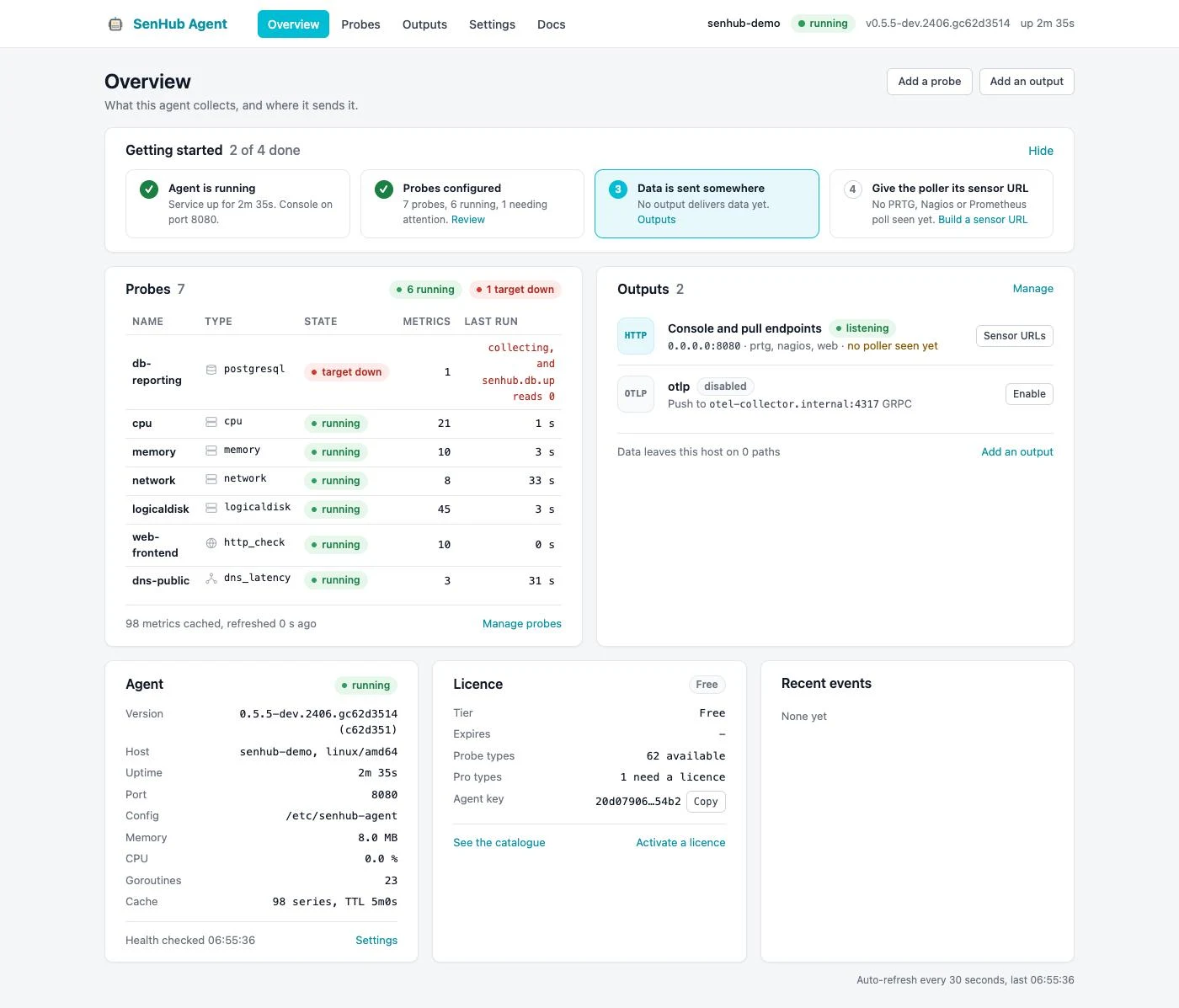
- Getting started lists four steps and computes their state from the agent: the agent runs, probes are configured, data is sent somewhere, the poller has its sensor URL. The current step is highlighted and carries the link that resolves it. Hide it once you are done; it disappears on its own when every step is complete.
- Probes is a compact table of the configured probes, the ones needing attention first, with their state, the number of series they hold and the time of their last collection. Probes whose target is down are counted on their own, not under "running".
- Outputs lists every output with its state and the action that matters: build a sensor URL for the HTTP output, edit a push output, enable a disabled one.
- Agent merges the former status, health and resources cards: version, host, instance ID, uptime, port, configuration path, memory, CPU, goroutines and cache size. Memory is the resident set the operating system charges to the agent, CPU its share of the whole machine over the last interval; both are asked of the operating system at each refresh. A warning appears when the configuration watch is off, because edits made by hand then need a restart.
- Licence shows the tier, the expiry date, how many probe types are available and how many need a licence, and the agent key with a copy button. The Settings page gathers the identifiers and the licence in full.
- Recent events shows the last transitions: a probe that started failing or recovered, an output that could not start, a save made from the console, a configuration reloaded from disk. The agent keeps the last fifty in memory; they do not survive a restart.
The page refreshes every thirty seconds.
Probes
The Probes page lists what the agent collects and lets you add, edit, enable, disable and delete probe instances without editing YAML on the server.
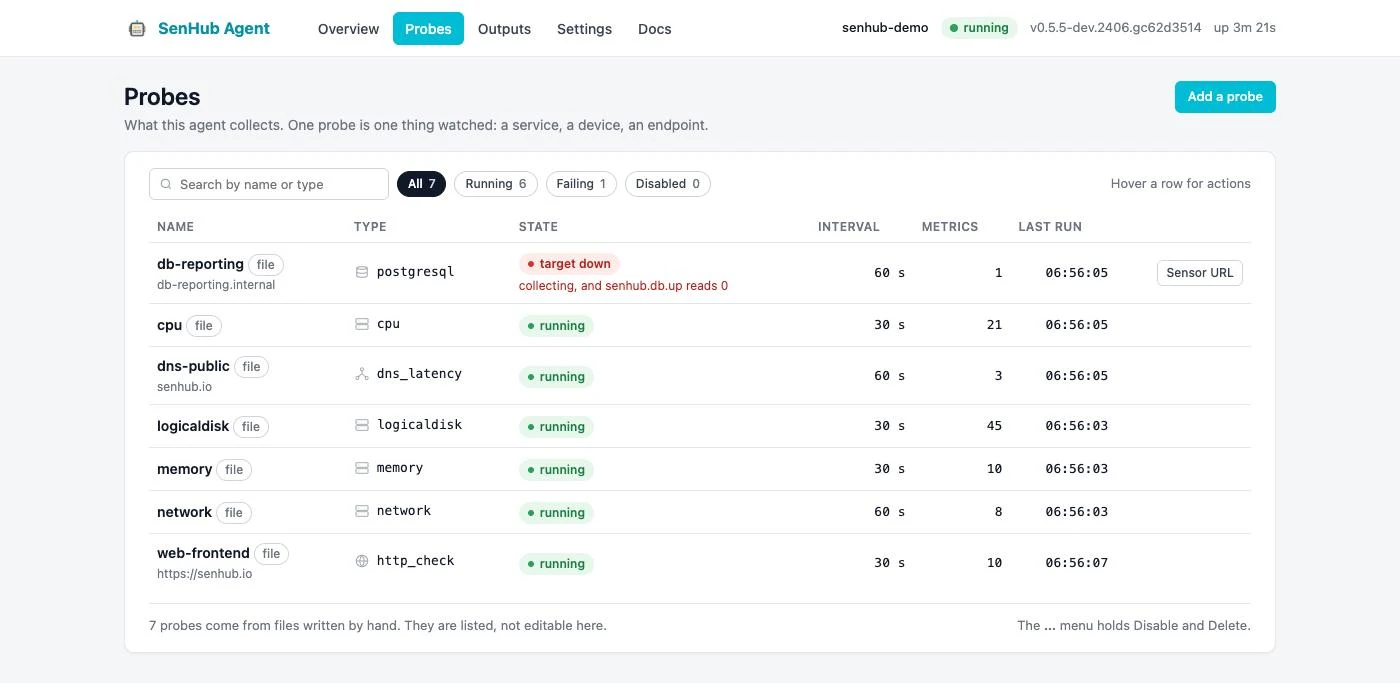
The list
Each row shows the probe's name, its type, its state (running, target down, failing with the reason, starting, disabled, not licensed, or not on this platform), its interval, the number of series it holds and the time of its last collection. A probe that collects while the system it reads does not answer is shown as target down, naming the up series that reads zero: the collection succeeded, the target is what is missing. Failing and target-down rows come first and keep their actions visible; other rows show them on hover: Edit, Sensor URL, Enable or Disable, Delete. Chips filter the list by state and a search box filters by name or type.
Probes declared in files written by hand carry a file pill: they are listed but left to the file. Only the fragments the console wrote, one file per instance under probes.d with a header comment, are edited from the page.
On a fresh install the page shows four starters instead of an empty table: This host creates the CPU, memory, disk and network probes in one click; A database, A network device and A web endpoint open the editor on the matching type.
The editor
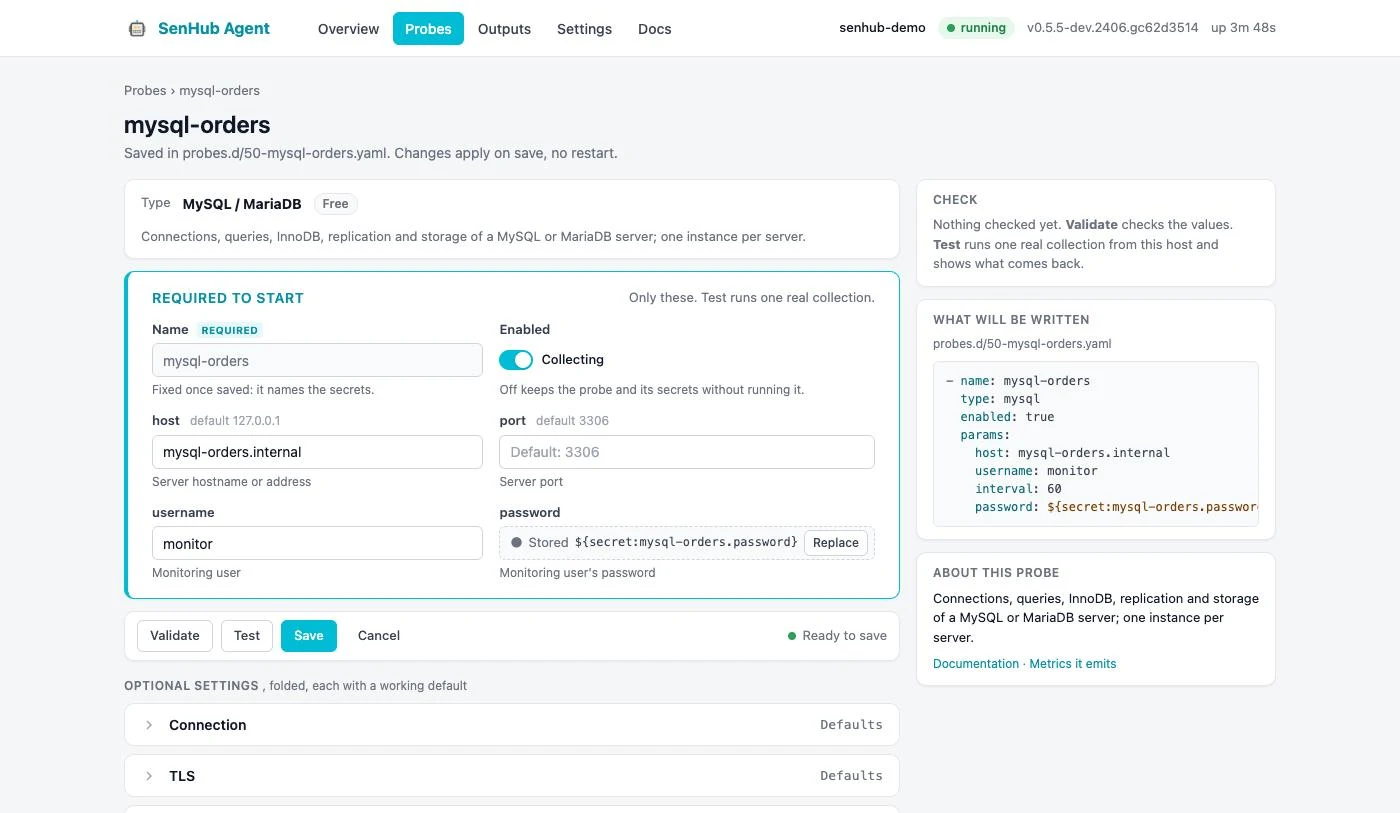
The editor puts first what the probe needs to start, and folds everything else.
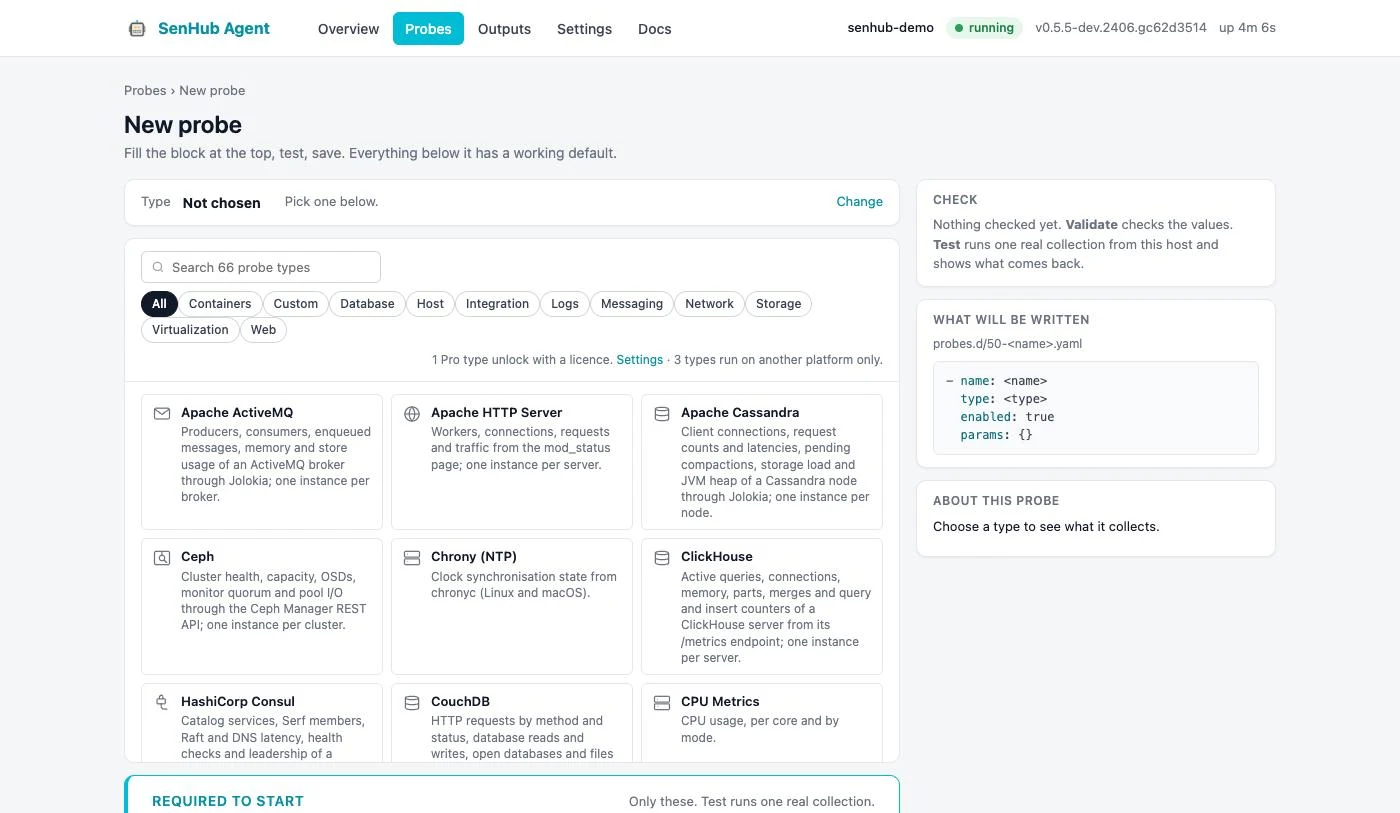
- Type is chosen in a grid of cards, filterable by name and by category. Each card carries a picture of its category, so a database, a queue and a web server are told apart before the words are read. Pro types show a lock until a licence is activated; a type that does not run on this operating system says so instead (Windows only, Linux only), so a lock always means a licence and never a platform. Once chosen, the type collapses to one line with a Change link.
- Required to start holds the name, the enabled switch and the parameters the probe does nothing useful without: for MySQL the host, port, user and password; for SNMP the target, version and community, replaced by the v3 credentials when the version is v3; for an HTTP check the URLs. Everything below this block has a working default.
- The action bar stays visible while you scroll: Validate checks the values against the schema and asks the probe what it would refuse; Test runs one real collection from this host and shows the first metrics that came back; Save (Save and start for a new probe) writes the file, and the agent starts, restarts or stops the probe on its own. Save stays disabled until the name and every required value are present, and the bar says what is missing.
- Optional settings are one collapsed section per group of the schema. A section whose values are all at their default says so in grey; a section with a value set shows a count and the values, so you know what is set without opening it. A section holding an error opens on its own with a red mark.
- Governance and tags is one section: owning team and contact, criticality, lifecycle, location, the application chain (the
applicationlabel) and other labels. It is stamped on the entities, metrics and logs of this probe only; see Governance per probe. - Edit as YAML shows the fragment as it will be written and accepts edits, checked with the same rules as the form.
- The right column shows the result of the last Validate or Test, the file that will be written with a live YAML preview, and a link to the probe's documentation.
Validation and test errors are anchored: the banner lists them, each one is a link to its field, and the message is repeated under the field. When a test fails, the raw message of the probe is shown together with a plain-language explanation for the common cases (refused credentials, a host that does not answer, an untrusted certificate).
Secrets
A password typed in the form goes to the agent's secret store; the file holds a ${secret:...} reference. A stored secret is shown as a state, not as a value: the word Stored, the reference, and a Replace button. Leaving it alone keeps it; the form never sends a stored value back to the agent. Replace clears the field: type a new value to change the secret, or leave the field empty and save to drop it. This holds for a secret inside a block and inside a list of blocks, such as the users of an SNMP v3 device. A field can also take a reference you already have, ${secret:...} or ${env:...}. Without a usable secret store the save is refused with the alternative rather than writing a password in clear.
Delete removes the file and its stored secrets; Disable keeps them, which is the better choice during an incident. Every deletion is confirmed in the page itself, not in a browser dialog: Escape cancels, Enter confirms, and the focus starts on Cancel.
Outputs
The Outputs page shows where the collected data goes. Pull outputs wait for a poller; push outputs send on their own.
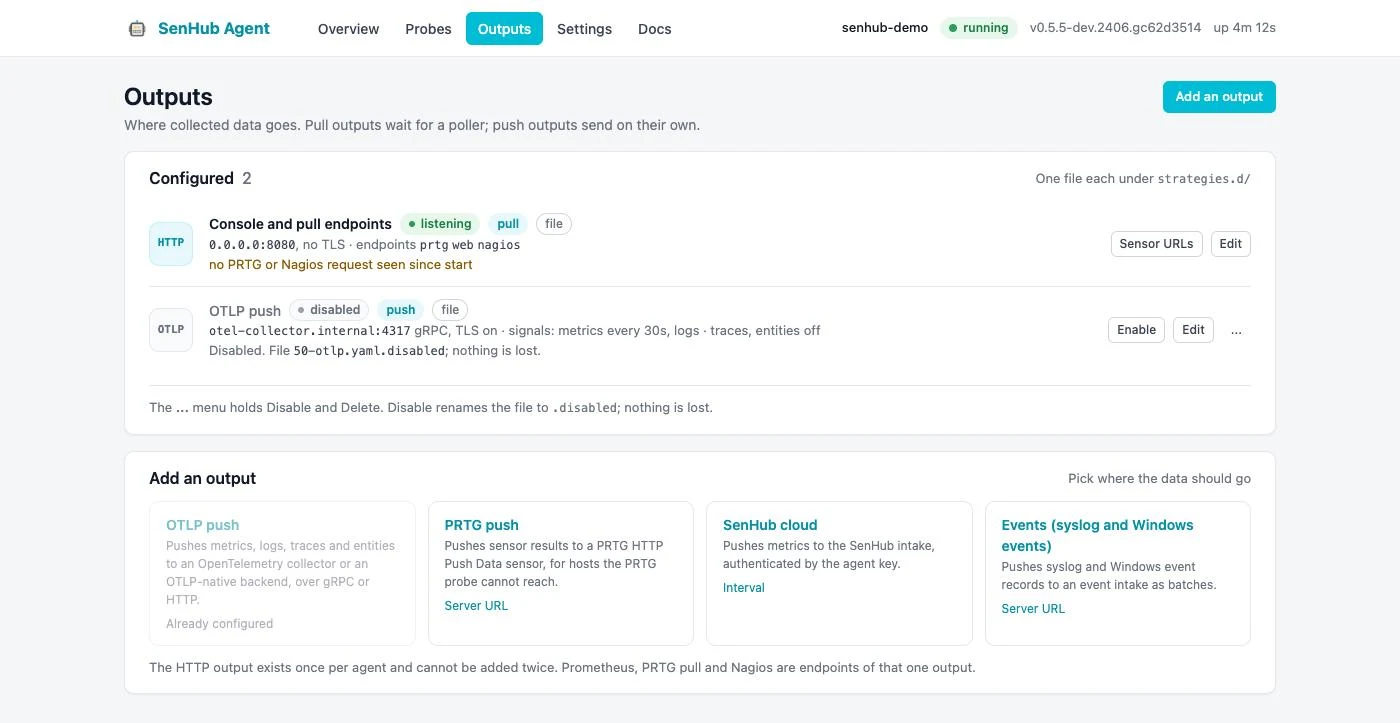
Each output is one file under strategies.d. The list shows, per output, its state and a line of life: which poller last read an endpoint and when, or when the last export succeeded and when the last one failed and why.
| State | Meaning |
|---|---|
| listening | The HTTP output serves its endpoints; the life line says which poller came and when. |
| exporting | A push output delivered its last batch. |
| idle | A push output is enabled and has delivered nothing yet, for instance traces without an otlp_receiver probe. |
| failing | The last delivery failed, or the output could not start; the reason is on the line. |
| disabled | The file is renamed .disabled; nothing is lost. |
Add an output picks a type: OTLP push, PRTG push, SenHub cloud, or events. The HTTP output exists once per agent and is created by the installer; PRTG pull, Nagios and Prometheus are endpoints of that one output.
The switch at the top of the editor, Starts as soon as saved, can be turned off before the first save: the file is then written as .disabled from the start, so an output can be prepared before its collector exists and enabled later from the list.
A file under strategies.d the agent cannot read, because of a YAML error or because it holds more than one output, is listed as failing with that error rather than left out, so the list shows every file on disk.
OTLP output
The OTLP editor follows the probe editor: the endpoint, the transport, TLS and the authorization header in the block at the top; signals, authentication and routing, TLS details, resource attributes, delivery, memory and persistence in collapsed sections; the YAML at the bottom.
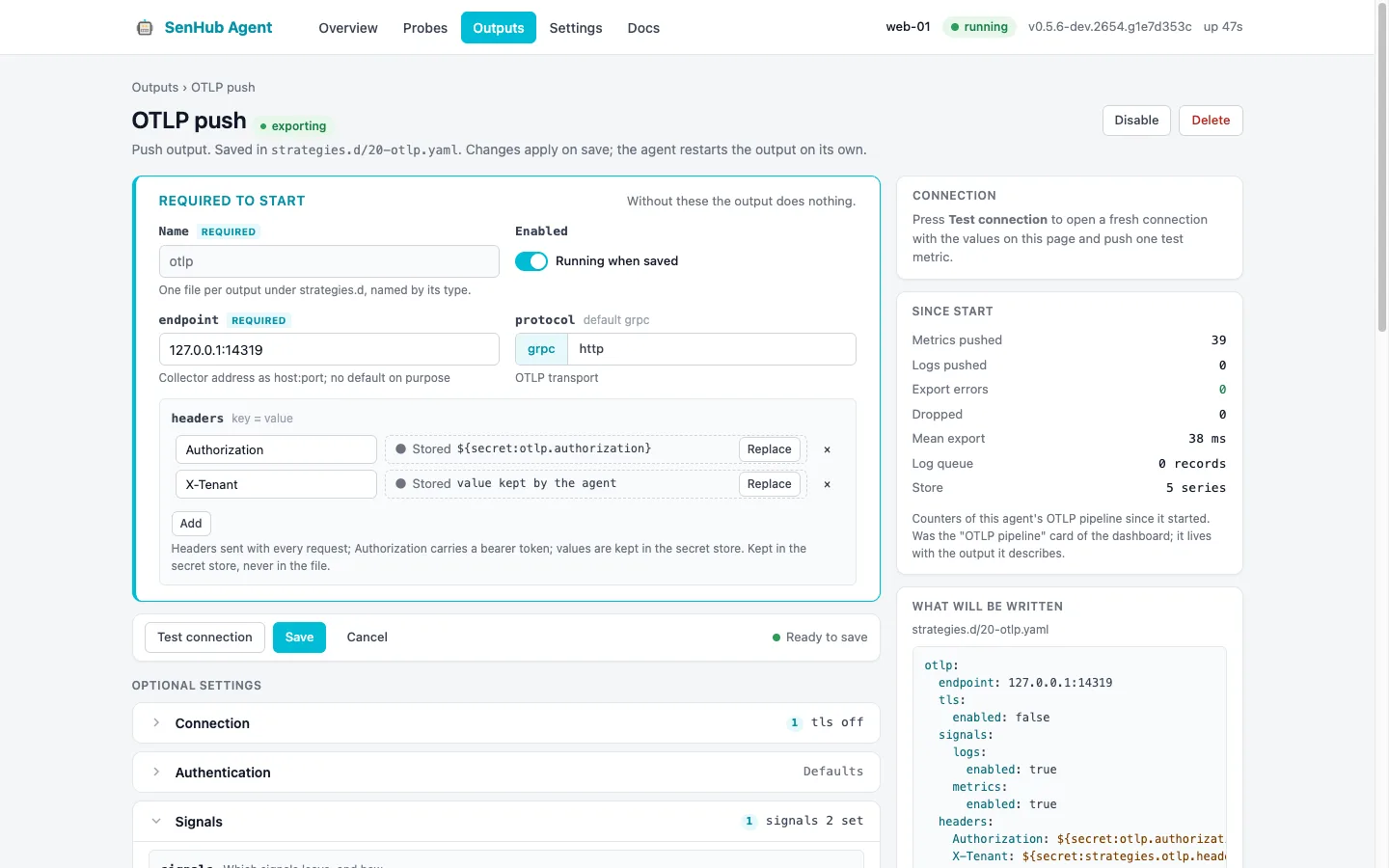
A header's value never comes back to the page. A stored one shows as Stored with Replace, and the file keeps it when the page is saved without touching it; the × of its row removes it from the file and from the secret store. A header written in clear in the file is moved into the secret store at the first save, as the schema says, and the What will be written panel shows the reference it will get.
Test connection opens a fresh connection with the values on the page, saved or not, and reports each step: name resolution, TCP, the TLS handshake with the certificate's subject and expiry, and the export of one test metric the receiver has to accept. A failing step is shown with its error, so a dead collector is diagnosed from the page.
The right column carries the counters of the OTLP pipeline (exports, errors, dropped points, mean export time, log queue, store size) that used to live on the dashboard.
HTTP output
The HTTP output page has two tabs.
Settings holds the port, whether the console is reachable from this machine only or from other machines, and which endpoints answer: PRTG, Nagios, Prometheus and the web console itself. TLS and the cache are collapsed sections. The right column says who is reading: the last request per endpoint, or that a poller has never come, which is the usual sign that the URL is not yet in its sensor.
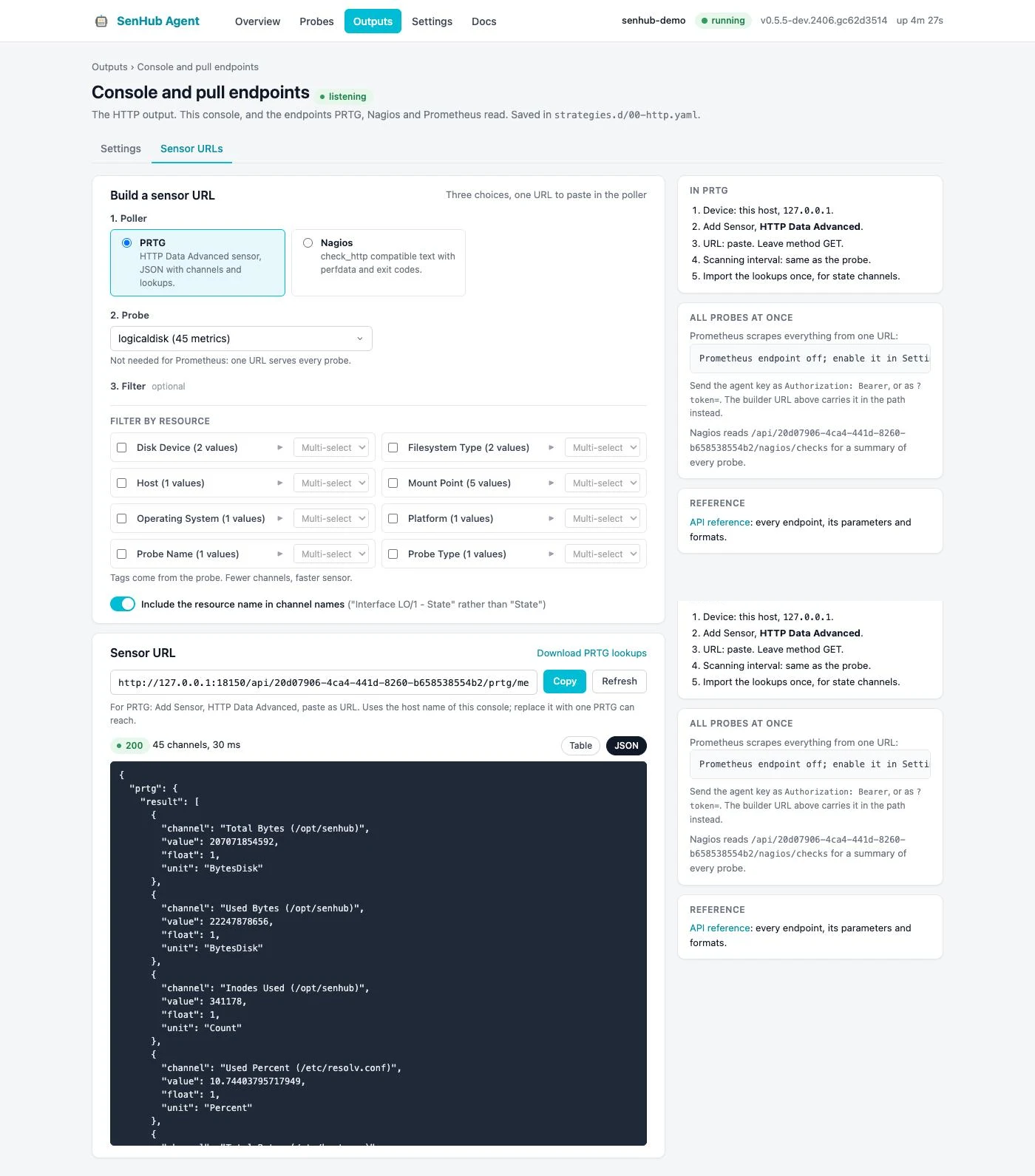
Sensor URLs replaces the former Sensor Builder. Three choices, one URL:
- The poller: PRTG, Nagios or Prometheus.
- The probe.
- An optional filter on the probe's tags, for probes that return many components.
Copy pastes the URL into the poller's sensor. Below it, a preview reads the URL on screen and follows it: change the poller, the probe or the filter and the panel refreshes on its own, and the Refresh button re-reads the same URL on demand. It opens on the raw response — what the poller actually receives — with the channel table one click away; whichever view you pick is the one you get next time. The page also offers the PRTG lookups for download and lists the steps on the PRTG side. The old address /web/{admin-key}/explorer redirects here.
Settings
The Settings page changes the agent's own configuration from the browser, so a Windows operator does not have to edit YAML on the server.
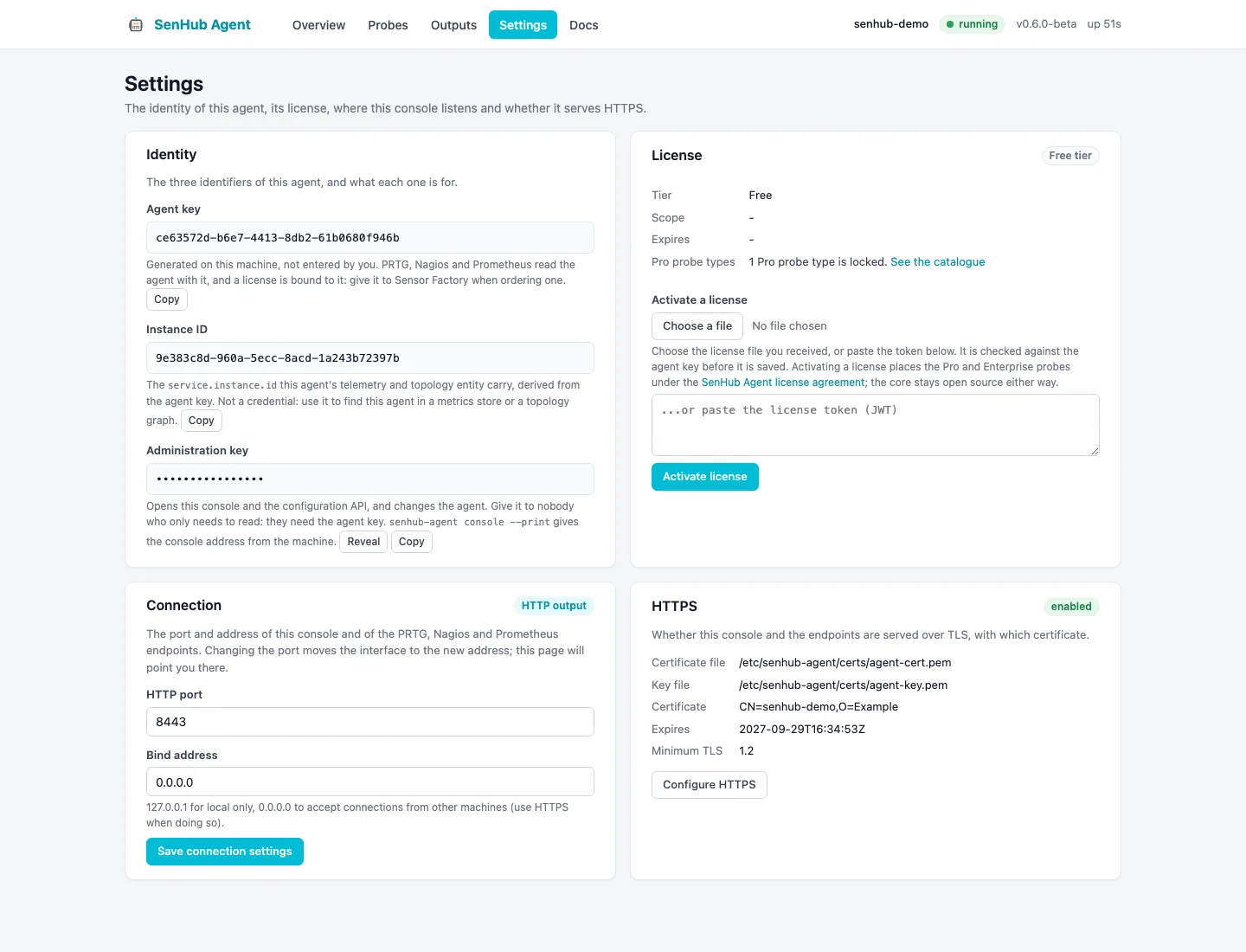
- Identity gathers the agent's three identifiers. The agent key is the one PRTG, Nagios and Prometheus read with and a licence is bound to: give it to Sensor Factory when ordering one. The instance ID is the
service.instance.idthe agent's telemetry and topology entity carry, derived from the agent key; it is not a credential. The administration key opens the console and the configuration API; it stays masked until you choose Reveal, and you should give it to nobody who only needs to read. - Licence shows the tier, the scope and the expiry of the active licence, uploads the licence file you received, or takes the pasted token. A customer licence is valid across the whole fleet, so the same file activates every agent; a licence issued for one specific agent is checked against that agent's key. The card shows how many Pro probe types are locked and links to the catalogue.
- Connection changes the port and bind address of the HTTP output, the same values the Outputs page edits. Changing the port moves the console to the new address; the page tells you where to reconnect. The change is applied live, with no restart.
- HTTPS shows whether the console and the endpoints are served over TLS, the certificate and key files, the certificate's subject and expiry read from the file, and the minimum TLS version. Configure HTTPS opens the TLS section of the HTTP output, where TLS is switched on and the files are set.
- Governance describes the host the agent runs on: owning team and contact, criticality, lifecycle, location and free labels, with the same fields and values as the "Governance and tags" section of a probe. It is written to the top-level
governance:block ofagent.yaml, stamped on the entities the agent reports and inherited by what runs on the host; a probe's own governance wins over it. A refused value (a criticality outsidecritical,high,medium,low, an unknown key) is marked on its field and nothing is written. The running agent follows a saved change without a restart. When a value is a${env:...}or${file:...}reference the card is read-only and says so: change the variable where the agent is started. The block can also be read and written withGETandPUT /api/{key}/config/governance.
These changes are written to the multi-file configuration and picked up by the running agent, exactly as the senhub-agent config set command does.
Monitoring system integration
PRTG Network Monitor
Sensor type
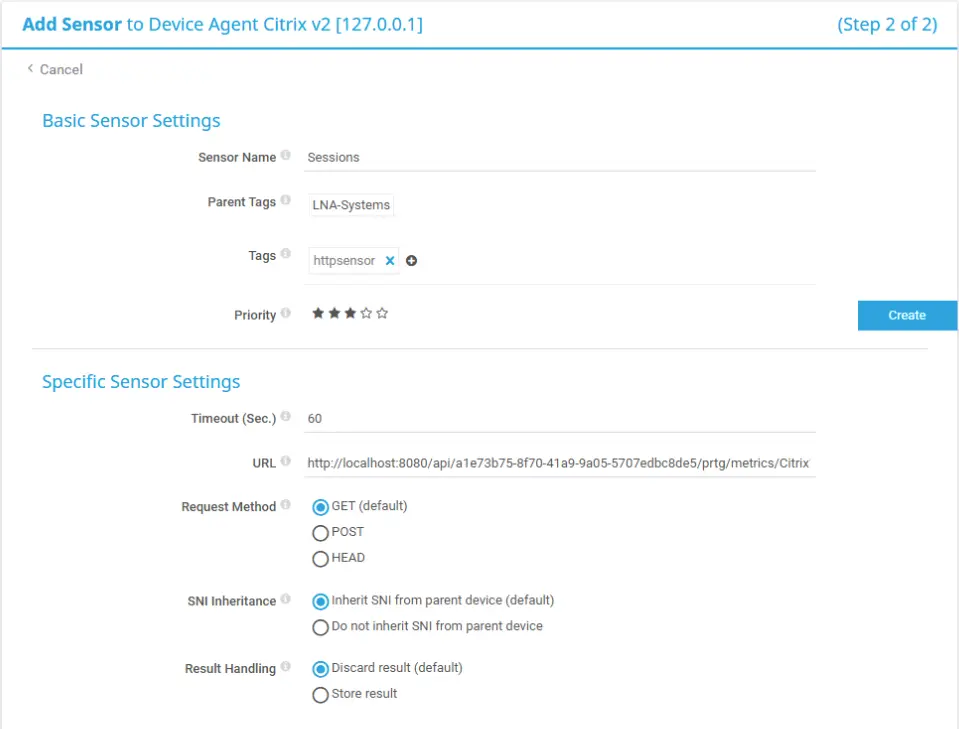
Use the HTTP Data Advanced sensor type in PRTG. This sensor sends an HTTP request to the agent and parses the JSON response.
Creating a PRTG sensor
For each probe you want to monitor in PRTG:
- In PRTG, right-click a device and select Add Sensor.
- Search for HTTP Data Advanced and select it.
- Configure the sensor:
- URL:
http://agent-server:8080/api/{key}/prtg/metrics/{probe-name}, as built by the Sensor URLs tab. - Request Method: GET.
- Content Type: leave the default.
The agent returns metrics in the PRTG JSON format:
{
  "prtg": {
    "result": [
      {
        "channel": "CPU Usage",
        "value": 45.2,
        "float": 1,
        "unit": "Percent"
      },
      {
        "channel": "Memory Available",
        "value": 8192,
        "float": 1,
        "unit": "BytesMemory"
      }
    ]
  }
}
Each channel becomes a separate metric in PRTG with its own graph and alerting thresholds.
PRTG keeps one value per channel name, so no two channels of one result share a name: when two series would, the agent appends the tag value that tells them apart (a CPU number, a container name), or a number when no tag does. PRTG takes at most 50 channels per sensor; narrow a larger result with a tag or metrics= filter.
Finding available probe names
To see which probe names are available for PRTG sensors:
Or open the Sensor URLs tab of the HTTP output in the console.
Filtering metrics by tags
Some probes (Citrix, NetScaler, SNMP) return metrics for multiple components. You can filter by tags:
This returns only the metrics for the virtual server named vs_web. The Sensor URLs tab builds this filter from the tags the probe reports.
Installing PRTG value lookups
SenHub Agent provides custom PRTG lookup files that translate numeric status values into meaningful text (for instance "Up" instead of "1"):
-
Download the lookups from the agent API:
Or use the download link of the Sensor URLs tab. -
Extract the ZIP file to the PRTG custom lookups directory on your PRTG server:
-
In the PRTG web interface, go to Administration > Administrative Tools and click Load Lookups and File Lists.
After loading the lookups, PRTG sensors display human-readable status values instead of raw numbers. The ZIP file contains lookup files in the PRTG .ovl format:
senhub-prtg-lookups.zip
  netscaler.lbvserver.state.ovl
  netscaler.service.state.ovl
  netscaler.ha.node.state.ovl
  ...
Nagios
For Nagios, use the Nagios-formatted endpoints:
The response follows the standard Nagios plugin output format:
Nagios reads the status from the plugin's exit code, which an HTTP answer does not carry. The check_senhub script in Call the agent from Nagios turns the first word of the answer into that exit code, with the matching command and service definitions.
To list available checks:
Prometheus
Prometheus scrapes every probe from one URL, /metrics on the agent's port, with the agent key as bearer token. See Prometheus.
The console's API
Everything the console does goes through the agent's JSON API, so scripts can do the same.
The routes marked admin answer the administration key alone and exist only when admin_key is set on the http output; without it they answer 404. The catalog, config/outputs, config/settings and the probe create, update and delete routes also need the web endpoint, as the console does. The other routes answer the agent key or the administration key.
| Route | Key | Purpose |
|---|---|---|
GET /api/{key}/catalog/probes |
admin | Probe types with their parameter schema, tier and licence verdict |
GET /api/{key}/config/probes |
admin | Configured probes with their live state, interval, series count and last update |
POST /api/{key}/config/probes, PUT and DELETE on .../{name} |
admin | Create, update, delete a probe fragment |
POST /api/{key}/config/validate, POST /api/{key}/config/preview, POST /api/{key}/config/test |
admin | Check values against the schema; preview; run one real collection |
GET /api/{key}/catalog/outputs |
admin | Output types with their parameter schema |
GET /api/{key}/config/outputs |
admin | Configured outputs with their state, delivery record and, for HTTP, the last poller per endpoint |
POST /api/{key}/config/outputs, PUT and DELETE on .../{name} |
admin | Create (with enabled: false to write the file as .disabled), update, delete an output file |
POST /api/{key}/config/outputs/validate, POST /api/{key}/config/outputs/test |
admin | Check values; test the connection step by step |
GET /api/{key}/config/settings, POST |
admin | Port, bind address, licence; the GET also returns the instance ID and the TLS state (certificate subject and expiry) |
GET /api/{key}/config/governance, PUT |
admin | The agent-level governance block; the PUT refuses an invalid value with the field named (400) and a block set from references with 409 |
POST /api/{key}/admin/cache/clear |
admin | Empty the metric cache |
GET /api/{key}/debug/logs, POST |
admin | Read the agent's recent logs; change log levels |
GET /api/{key}/debug/pprof/... |
admin | Go runtime profiler |
GET /api/{key}/info/events |
agent or admin | The recent events shown on the Overview |
An update sends only what it changes. A PUT on an output without enabled keeps it in its current state, so a parameter edit never re-enables what an operator disabled. A stored secret the body does not mention is kept, for probes and outputs alike; to drop one, send its key with the value null, inside a block or a list of blocks as well.
Useful API queries
Check agent health
The route is public: it takes no key. Response:
{
  "status": "ok",
  "timestamp": "2026-09-29T10:15:00+02:00",
  "memory_mb": 104.8,
  "version": "0.6.0"
}
memory_mb is the agent's resident memory at the time of the request, as the operating system counts it. version is the agent release.
List collected probes
Response:
{
  "probes": ["cpu", "memory", "core-sw-01", "mysql-prod"],
  "probe_metrics": {
    "cpu": 4,
    "memory": 3,
    "core-sw-01": 85,
    "mysql-prod": 64
  },
  "total_metrics": 156
}
View system information
Returns the host name, version, uptime, memory usage, CPU usage, cache statistics, service health and the outputs that are not running.
Check licence status
Response:
{
  "status": "active",
  "tier": "pro",
  "expires_at": "2026-06-30T23:59:59Z",
  "days_remaining": 120,
  "authorized_probes": ["cpu", "memory", "citrix", "netscaler", "redfish"],
  "free_tier_probes": ["cpu", "memory", "logicaldisk", "network"]
}
OTLP counters
Returns the counters of the OTLP pipeline shown on the OTLP output page; see Monitoring the OTLP pipeline.
Cache statistics
Returns the number of cached metrics, memory usage, and the cache's time to live.
Clear the cache
If you need to force a fresh collection:
This route answers the administration key only; the agent key gets 401. It clears all cached metrics. The next collection cycle repopulates the cache.